
Appearance
Turbo Studio in Azure
Use this guide to deploy the Turbo Studio Azure Marketplace Image (AMI) so you can capture applications on a clean, preconfigured VM with Turbo Studio and Turbo Client installed.
What You'll Learn
- How to deploy the Turbo Studio AMI from the Azure Marketplace
- How to connect to the deployed VM for capture work
Prerequisites
- Azure subscription
- Free Turbo.net account
INFO
Azure still bills your subscription for compute and storage usage when you deploy the Turbo Studio AMI, even though the AMI itself has no extra charges.
Port 3389 for Remote Desktop Protocol (RDP) is open by default after deployment.
Deploy the AMI
To deploy the Turbo Studio AMI, go to portal.azure.com, click Create a resource, search for Turbo Studio, select the Latest plan, and click Create. The Latest plan always deploys the most current Turbo Studio version available in the marketplace.
Complete the deployment tabs:
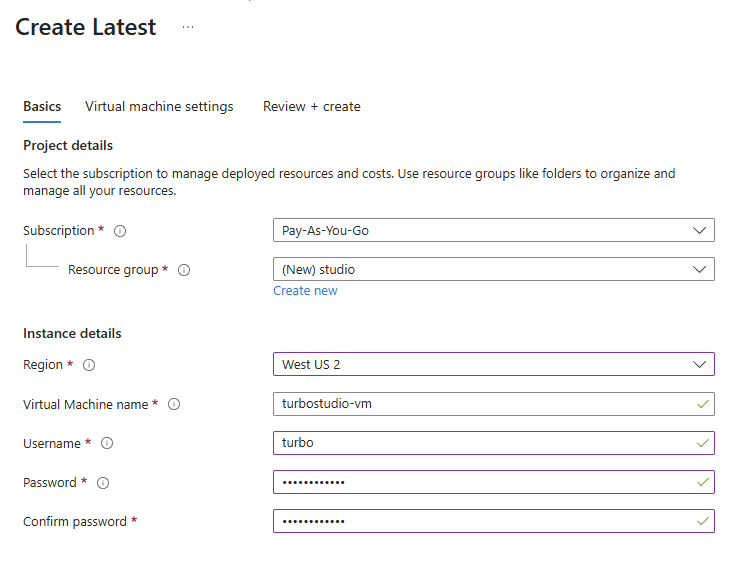
Basics Tab
- Subscription: Select the subscription to manage deployed resources and costs.
- Resource group: Choose the resource group for the AMI deployment.
- Region: Select the Azure region for the AMI.
- Virtual Machine name: Enter the VM hostname.
- Username: Create the local administrative account username on the VM.
- Password: Create the local administrative account password on the VM.
- Confirm password: Confirm the local administrative account password.
Virtual Machine Settings Tab
- Virtual machine size: Change the default VM size by clicking Change size and selecting a different option.
Click Review + create after you fill out the required fields on each tab and validation passes. After reviewing the configuration, click Create to start the deployment.
Connect to the VM
When the deployment finishes, open a Remote Desktop Protocol (RDP) connection to the VM using the Public IP address from the Overview page of the deployed Turbo Studio AMI VM in the Azure Portal.
Next Steps
Use the deployed Turbo Studio AMI to capture applications. See Working with Turbo Studio for comprehensive guidance on using Turbo Studio, including the Setup Capture and Snapshot methods.