
Appearance
Hub
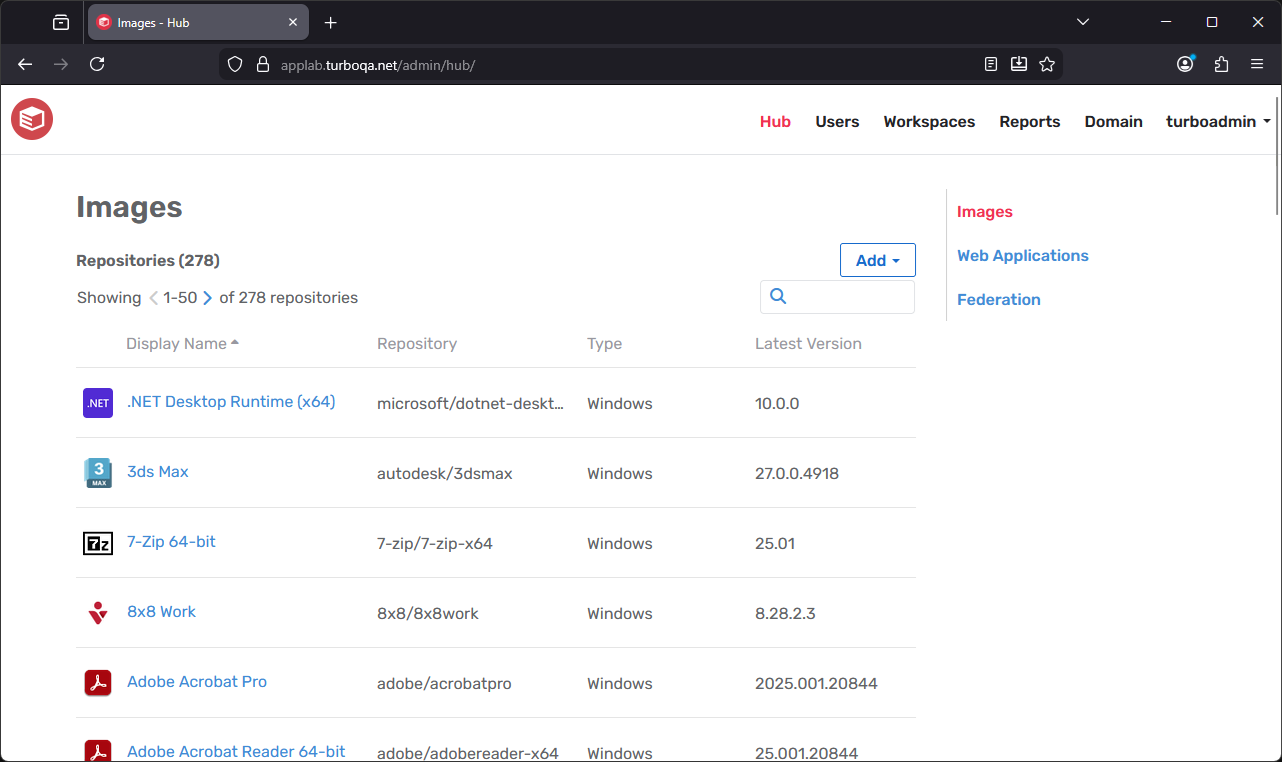
All application repositories on Turbo Server are managed from the Images page of the Administration Site.
Managing Repositories
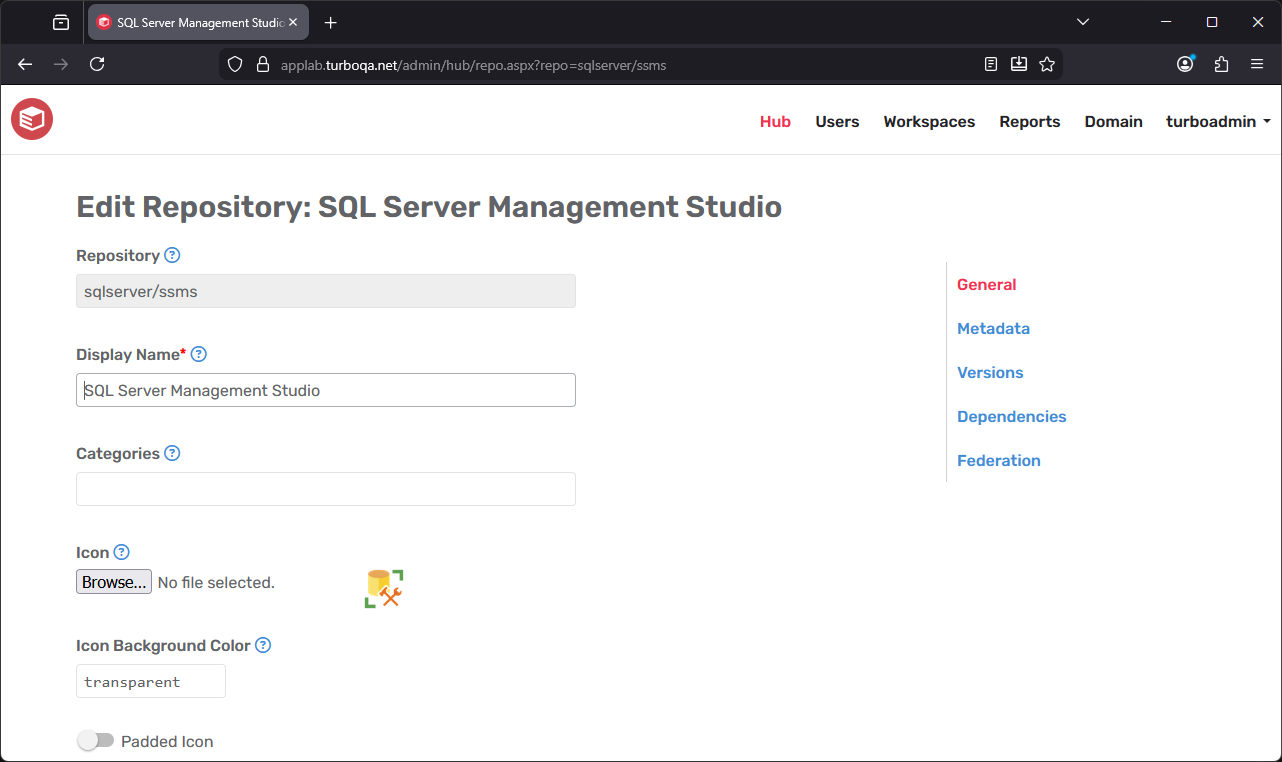
On the Edit Repository page, the repository Display Name can be modified. The Display Name appears in the Images page list. The Repository id field is assigned when the SVM layer image is first pushed to the Hub and cannot be modified. The Pre-Cache setting specifies whether to cache the repository on application servers. Pre-cached repositories are pulled onto the application servers every 10 minutes. A workspace may also pre-cache the repository.
The Metadata page, you may fill in the Summary, Description, Readme, EULA, Developer Website, Support Website, Build Script URL, Splash Image, Background Image, and Background Image Color metadata fields.
The Versions page lists all available images that are in the repository. The images can be referenced by their tag or their ID (example: mozilla/firefox:64.0 or mozilla/firefox#44397e23bf46a08a8a567ba13b2c215668d451c9dde41b030706779dc977cc02). Accessing a repository without a tag or ID will use the latest available image (example: mozilla/firefox). Note that any repository updates may take up to 24 hours to be automatically retrieved by the Turbo Client.
The Dependencies page lists other repositories that are Dependencies of the current repository or Used By the current repository. Dependencies are downloaded on-demand when creating a new session.
The Federation section allows enabling or disabling repository federation from a configured federation source. The selected federation source's settings will be used to determine the federation behavior. If you wish to create a new federation source, please see Federation.
Importing Repositories
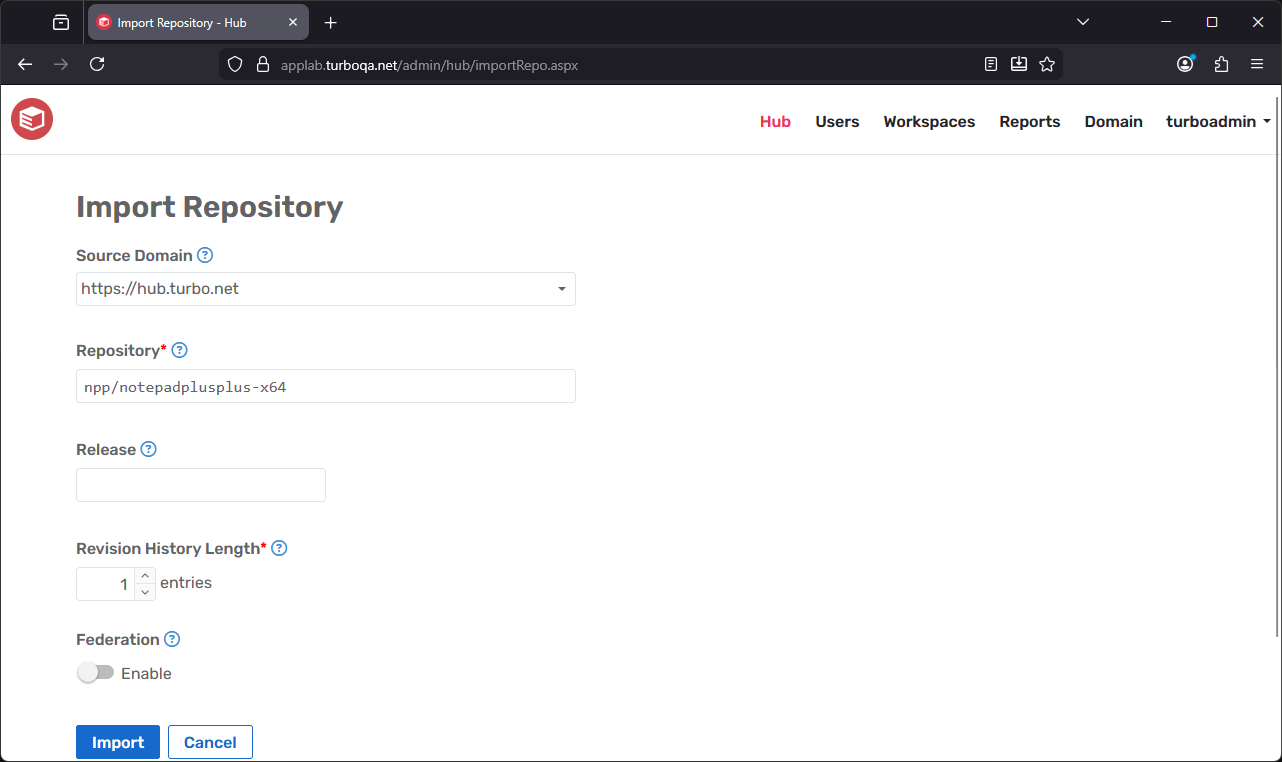
With the Import Repository feature, you can import repositories from an external Hub server, such as the public Turbo.net Hub, into your local Turbo Server Hub. To import a repository, click the Add dropdown from the Images page and select Import Repository. The import page has the following options available:
Source Domain: The Hub server from which the repository will be imported. By default only
https://hub.turbo.netis available, but you may add additional sources from the Federation page.
If your Turbo Server is running behind a firewall or proxy you may need to whitelisthub.turbo.netto import repositories from the public Turbo.net Hub.Repository: The namespec of the external repository in namespace/repositoryname format.
Example:mozilla/firefoxRelease: Only revisions with this release are imported from the external repository. Leave blank to import without release restrictions.
Revision History Length: The number of revisions to pull from the remote repository. The default value is
1revision. Revisions are imported in descending release order.Federation: Whether repository federation is enabled to automatically pull new version updates per the federation source's settings.
After setting the properties, click Import. The import may take a few minutes to complete depending on the size of the repository. After the import is complete you will see the new repository in your main repository list on the Images page.
Imported repositories will enable federation from the import source URL by default. Federation may be disabled from the repository settings page.
Managing Web Applications
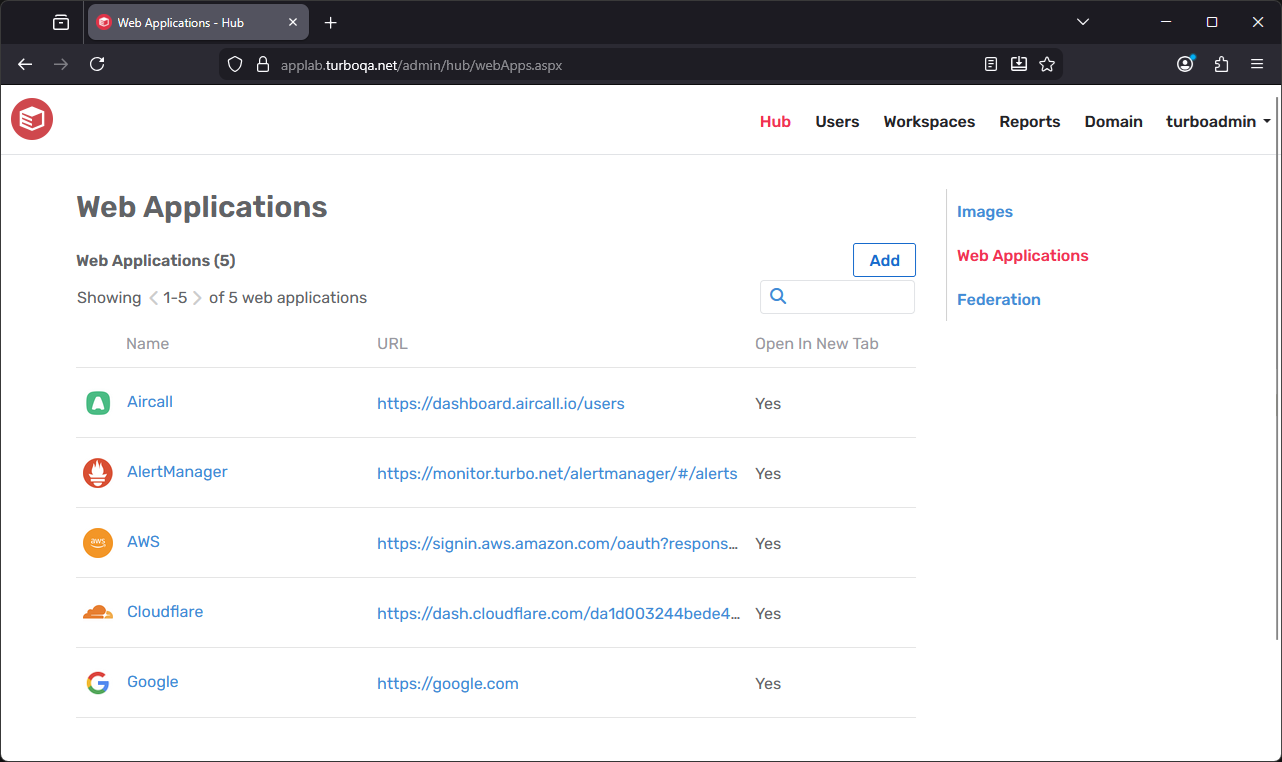
A Web Application is a software program that runs on an external website that is opened in the active browser or a new virtual browser environment. All web applications on Turbo Server are managed from the Web Applications page of the Administration Site. To add a web application, click the Add button on the Web Applications page.
The web application edit page has the following options available. These settings will be inherited when the web application is added to a workspace. For more details, see Workspace Applications.
- Name: The name that will be displayed to end-users on the Portal dashboard.
- URL: The target URL that is opened when launching the web application.
- Open In New Tab: Whether the URL will be opened in a new tab.
- Icon: The icon that will be displayed to end-users on the Portal dashboard.
Federation
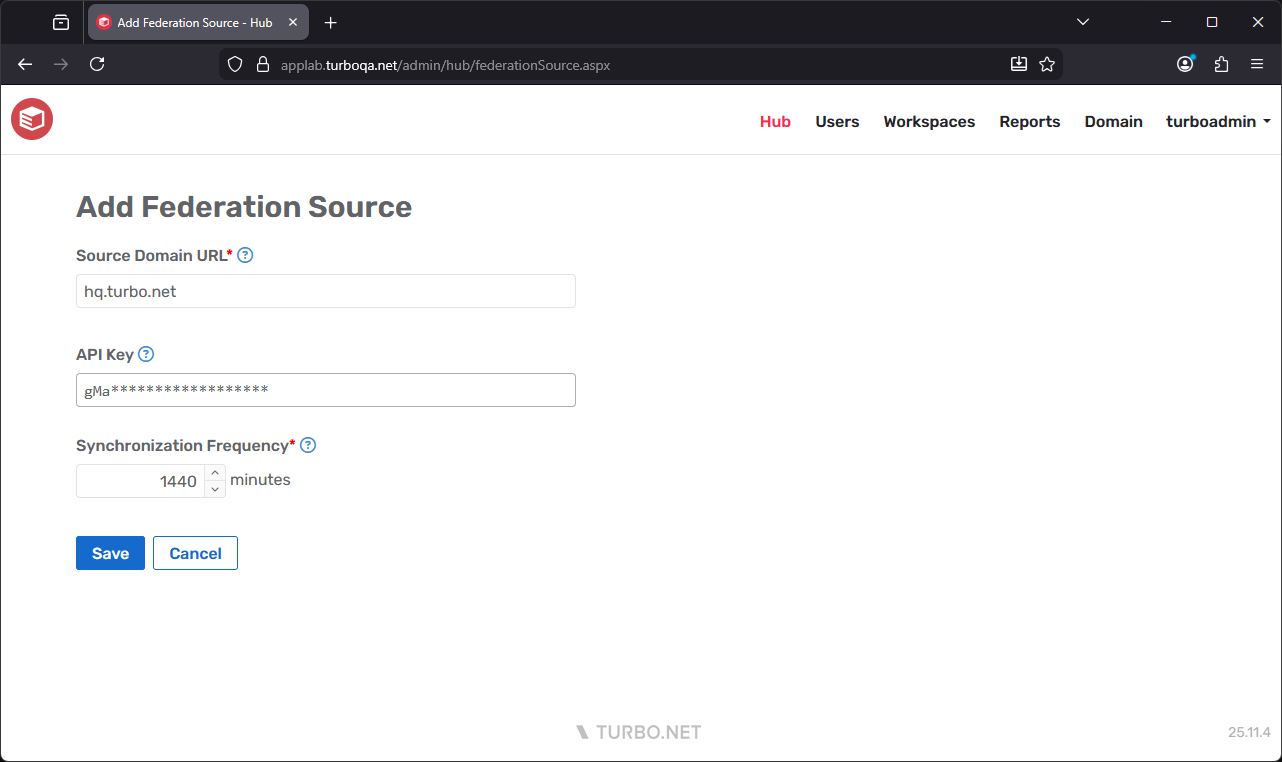
The Federation page allows you to configure repository federation sources, which can be selected during repository import or applied to individual repositories to reduce setup time and keep repositories in sync across domains. Repositories that have federation enabled will periodically check the source domain for updates and pull any changes.
Please be aware that any setting changes to a federated repository will be overwritten by the repository settings on the source domain.
Federation sources can be configured with the following settings:
- Source Domain URL: The federation source domain URL from which repositories will be replicated.
- API Key (Optional): The API key used to access repositories from the federation source.
The public Turbo.net Hub does not require an API Key as it is publicly accessible.
For more information, see API Keys. - Synchronization Frequency: The frequency at which this server will check the federation source for updates.