
Appearance
Application Server Troubleshooting
Use this guide to resolve common issues that prevent application servers from accepting or serving sessions.
Group Policy Settings
Problem
- Security baseline Group Policy objects block required Remote Desktop or Turbo Server behaviors.
Solutions
- Ensure the following policies are unconfigured or match the recommended values before deploying application servers.
- Add any missing templates to the Windows Policy folder so all settings are visible during review.
Related
Ensure the following group policies are either unconfigured or set to the following values:
| Path | Setting | Value | Comment |
|---|---|---|---|
| Administrative Templates > Windows Components > Remote Desktop Services > Remote Desktop Session Host > Security | Always prompt for password upon connection | Disabled | A login prompt will prevent remoteapp applications from launching. |
| Require use of specific security layer for remote (RDP) connections | Enabled (SSL) or not configured | Enhances security by requiring TLS 1.0 to authenticate the RD Session Host server during RDP connections. | |
| Require user authentication for remote connections by using Network Level Authentication | Enabled or not configured | Enhances security by requiring user authentication earlier in the remote connection process. Some clients may require NLA authentication to login. | |
| Administrative Templates > Windows Components > Remote Desktop Services > Remote Desktop Session Host > Connections | Allow users to connect remotely by using Remote Desktop Services | Enabled or not configured | If this is not configured and users are able to connect then it may be left as not configured. |
| Administrative Templates > Windows Components > Remote Desktop Services > Remote Desktop Session Host > Device and Resource Redirection | Do no allow drive redirection | Disabled or not configured (Recommended) | Disables the mapping of client drives when streaming remote applications. |
| Administrative Templates > Windows Components > Remote Desktop Services > Remote Desktop Session Host > Session Time Limits | Set time limit for active Remote Desktop Services sessions | 21600000 (Recommended) | The maximum amount of time that a Remote Desktop Services session can be active before it is automatically disconnected. |
| Set time limit for active but idle Remote Desktop Services sessions | 21600000 (Recommended) | The maximum amount of time that a Remote Desktop Services session can be active before it is automatically disconnected. | |
| Set time limit for disconnected sessions | 300000 (Recommended) | The maximum amount of time that a disconnected session remains active on the server. | |
| Set time limit for logoff of RemoteApp sessions | 600000 (Recommended) | How long a user's RemoteApp session will remain in a disconnected state after closing all RemoteApp programs before the session is logged off from the RD Session Host server. | |
| Windows Settings > Security Settings > Local Policies > User Rights Assignment | Deny access to this computer from the network | Remove Local account | Local users must be able to remote into application server to run applications and configure the machine using the --app-server install. This is not required if using active directory authentication. |
| Deny log on through Remote Desktop Services | Remove Local account | Local users must be able to remote into application server to run applications. This is not required if using active directory authentication. | |
| Allow log on through Remote Desktop Services | Add Users | Click object types and check "groups" then add the object "Users". | |
| Windows Settings > Security Settings > Application Control Policies > AppLocker > Executable Rules | Allow Everyone | %OSDRIVE%\PROGRAMDATA\TURBO* | Turbo VM images may be cached in the PROGRAMDATA folder. |
| Windows Settings > Security Settings > Application Control Policies > AppLocker > Executable Rules | Allow Everyone | %OSDRIVE%\USERS*\APPDATA\LOCAL\TURBO* | Turbo Container Sandboxes may be cached in the user's local AppData folder. |
| Windows Settings > Security Settings > Local Policies > Security Options | Interactive Logon: Machine inactivity limit | 0 or Not Defined | Prompts user to login after idle timeout. Use Admin > General > Streaming settings instead. |
Diagnosing WinRM Errors (Legacy)
Problem
- Legacy Turbo Broker deployments (prior to 2019.7.26) cannot manage servers because WinRM is blocked.
Solutions
- Configure the following policies to enable WinRM access for provisioning and management.
- Use
winrm identifyto verify connectivity, thenwinrm quickconfigif required.
Related
Enable these policies for legacy WinRM support:
| Path | Setting | Value | Comment |
|---|---|---|---|
| Administrative Templates > SCM: Pass the Hash Mitigations | Apply UAC restrictions to local accounts on network logons | Disabled or not configured | Security baseline will enable this value. If the policy path is missing, locate the ptH.admx and add it in your group policy templates folder. |
| Administrative Templates > Windows Components > Windows Remote Management > WinRM Client | Allow Basic authentication | Enabled or not configured | Security baseline default value is not configured. |
| Allow unencrypted traffic | Enabled or not configured | Security baseline will set this to disabled. The winrm command will test the connection using basic http. | |
| Administrative Templates > Windows Components > Windows Remote Management > WinRM Service | Allow remote server management through WinRM | Enabled or not configured | Application server provision requires WinRM. If enabled, make sure you set the IPv4 and IPv6 filters correctly. |
| Allow Basic authentication | Enabled | Application server provision requires WinRM. | |
| Allow unencrypted traffic | Enabled | Application server provision requires WinRM. | |
| Windows Settings > Security Settings > Local Policies > User Rights Assignment | Deny access to this computer from the network | Remove Local account | Application server provision requires WinRM potentially over the local administrator account. |
In a command prompt on the application server, issue the following command:
>winrm identify -r:http://localhost:5985 -auth:basic -u:{adminuser} -p:{password} -encoding:utf-8The command should return an IdentifyResponse. If the command fails and you have checked the group policies, try the winrm quickconfig command. Note that the quickconfig command will request LocalAccountTokenFilterPolicy; Turbo does not require that setting.
>winrm quickconfig
WinRM service is already running on this machine.
WinRM is not set up to allow remote access to this machine for management.
The following changes must be made:

Configure LocalAccountTokenFilterPolicy to grant administrative rights remotely to local users.

Make these changes [y/n]? y

WinRM has been updated for remote management.

Configured LocalAccountTokenFilterPolicy to grant administrative rights remotely to local users.

>winrm quickconfig
WinRM service is already running on this machine.
WinRM is already set up for remote management on this computer.
RemoteApp Registry Settings
Problem
- Registry values required for RemoteApp and Turbo components are missing or incorrect.
Solutions
- Confirm the following registry settings are present on application servers after provisioning.
Related
| Path | Setting | Value | Comment |
|---|---|---|---|
| HKLM:\SOFTWARE\Policies\Microsoft\Windows NT\Terminal Services | fDenyTSConnections | 0 (DWORD) | Enables Terminal Services. |
| fResetBroken | 1 (DWORD) | ||
| fDisableCam | 0 (DWORD) | Enables audio. | |
| DisablePasswordSaving | 0 (DWORD) | ||
| fPromptForPassword | 0 (DWORD) | ||
| fEncryptRPCTraffic | 0 (DWORD) | ||
| MinEncryptionLevel | absent | Remove this value. | |
| Shadow | 1 | Enable admin session shadowing. | |
| fSingleSessionPerUser | 0 | Allows the user to run multiple applications in separate sessions. | |
| HKLM:\SOFTWARE\Policies\Microsoft\Internet Explorer\Main | DisableFirstRunCustomize | 1 (DWORD) | Disable IE first run dialog |
| HKLM:\Software\Policies\Microsoft\Windows\CurrentVersion\Internet Settings\Zones\1 | 2500 | 0 (DWORD) | Enable IE Protected mode for local intratet, avoiding warning on first use |
| HKLM:\Software\Policies\Microsoft\Windows\Windows Error Reporting | DontShowUI | 1 (DWORD) | Disable crash report UI |
| HKLM:\Software\Policies\Microsoft\Windows\WindowsUpdate | ElevateNonAdmins | 0 (DWORD) | Disable Windows Update UI for non-admins |
| HKLM:\SOFTWARE\Microsoft\Windows\CurrentVersion\Policies\Ext | RestrictToList | 1 (DWORD) | Disable IE addons dialogs |
| HKLM:\SOFTWARE\Microsoft\Windows NT\CurrentVersion\Terminal Server\TSAppAllowList | fDisabledAllowList | 1 (DWORD) | Enables the RemoteApp allowed program list. |
| CustomRDPSettings | authentication level:i:2 (String) | Specifies RemoteApp custom settings such as the authentication level. | |
| HKLM:\SOFTWARE\Microsoft\Windows NT\CurrentVersion\Terminal Server\TSAppAllowList\Applications\turboplay | Path | C:\Program Files (x86)\Turbo\Cmd\turboplay.exe (String) | Make sure turboplay is allowed. |
| HKLM:\SOFTWARE\Microsoft\Windows NT\CurrentVersion\Terminal Server\TSAppAllowList\Applications\turbo | Path | C:\Program Files (x86)\Turbo\Cmd\turbo.exe (String) | Make sure turbo is allowed. |
| HKLM:\SYSTEM\CurrentControlSet\Control\Terminal Server\WinStations\RDP-Tcp | SecurityLayer | 2 (DWORD) | Require TLS 1.0 to authenticate the RD Session Host server. |
| UserAuthentication | 1 (DWORD) | Enable Network Level Authentication. |
Windows Updates
Problem
- Missing Windows updates block secure connections between clients and the RD Session Host.
Solutions
- Install the required cumulative updates for your server version before testing streaming connections.
Related
| Operating System | Update | Comment |
|---|---|---|
| Windows Server 2012 | KB4103730 or KB4103726 | Security update for Remote Desktop connections. |
| Windows Server 2016 | KB4103723 | Security update for Remote Desktop connections. |
Windows Update Notifications
Problem
- Users see Windows Update notifications during remote sessions.
Solutions
- Disable Automatic Updates in Computer Configuration > Administrative Templates > Windows Components > Windows Update:
First open the Local Group Policy Editor:
> gpedit.mscSet Configure Automatic Updates to disabled under Computer Configuration/Administrative Templates/Windows Components/Windows Update.
Related
Application Launch Issues
Problem
- Application launches fail or performance is poor during startup.
Solutions
- Wait up to 20 seconds after Turbo Server service start while Broker and Application Server sync.
- Disable background processes such as Windows Update during peak use; check Task Manager for
TiWorker.exeor other heavy processes.
Related
Application Server Is Unavailable
Problem
- Broker logs show the application server is unavailable or unreachable.
Solutions
- From the Portal server, browse to
http://{app-server-host}/server/using the internal hostname (Internal Hostname or IP Address in domain settings). A healthy server lists the version.
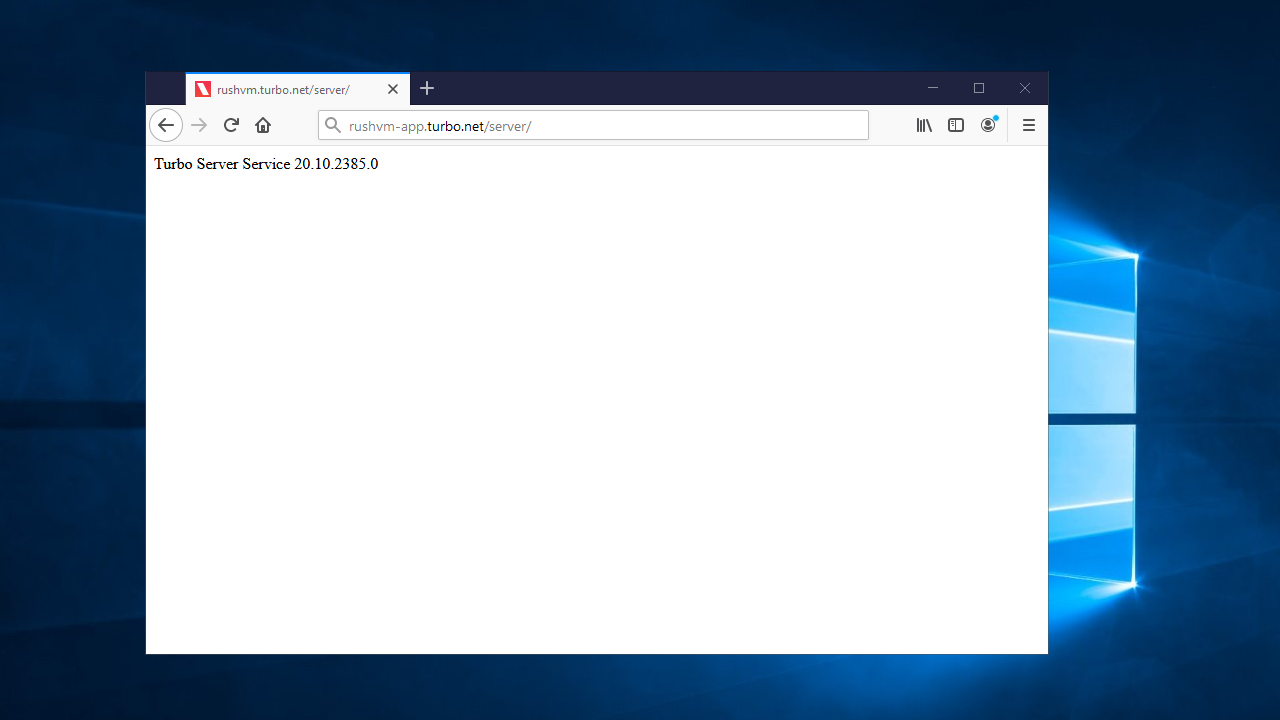
If this page returns an IIS 404 page, uninstall IIS because it may be using the Application Server port.
If the response is Not Found (404), verify the Turbo.AppServer service is running and the hostname is correct.
If the response is Connection Timeout, review Windows Firewall rules per Firewall and Security and restart the Turbo service if needed.
If the response is Service Unavailable (503), wait for the Application Server to finish restarting, then retry.
Related
Application Issues
Problem
- Applications error or hang when running on the application server.
Solutions
- Run the app directly on the application server using
turbo run [app]to confirm whether the issue is with the app itself. - If the issue reproduces locally, follow the Turbo VM troubleshooting guidance.
Related
Run In Cloud Prompts To Select A Session
Problem
- Users see Select a session to reconnect to when launching with Run in Cloud.
Solutions
- This occurs when apps use Ask for Credentials and the user has multiple disconnected sessions. Selecting the correct session reconnects successfully; selecting the wrong session prompts for credentials again.
- Instruct users to exit applications before closing the browser tab so sessions end cleanly, or configure Temporary Profile mode to avoid session reuse.
Related
Run In Cloud Shows Another Application
Problem
- Launching with Run in Cloud reconnects to a disconnected session and shows another running application.
Solutions
- Occurs when apps use Ask for Credentials and the user has a disconnected session. Configure Temporary Profile mode or ask users to fully exit applications before closing the browser tab to avoid session reuse.
Application Window Disappears After Idling
Problem
- The window closes (Windowed) or shows the lock screen (HTML5) while the portal still shows an active session.
Solutions
- Set Interactive Logon: Machine inactivity limit to
0and use the Streaming settings to control session length.
Related
Application Server Is Online But Idle
Problem
- The server is online but does not receive application launches because of fatal errors.
Solutions
- Check the Server Dashboard Alerts for fatal errors (for example, RDP misconfiguration).
- Follow the recommended action in the alert, resolve the issue, then click Clear to return the server to service.
Related