
Appearance
Hub Server Troubleshooting
This guide provides information to help troubleshoot common issues you might encounter while installing and managing Turbo Server.
What You'll Learn
- How to address common installation failures
- Where to check Hub Server performance data and logs
- Which diagnostics to collect before contacting support
Setup and Installation Issues
Database Connection Error
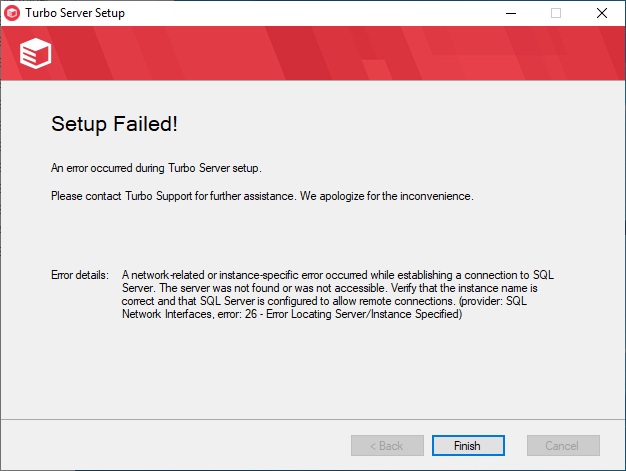
Problem
- Setup fails with
A network related or instance-specific error occurred while establishing a connection to SQL Server. The server was not found or was not accessible.
Solutions
- Verify SQL Server connectivity with the specified credentials.
- In standalone mode, wait for the embedded database to finish initializing.
- Confirm the Turbo Server service is installed and running.
- Try opening the admin site at
http://localhost/adminto confirm connectivity.
Related
Common Installation Issues
Problem
- Installation completes with errors or common post-install symptoms.
Solutions
- Use the following quick fixes for frequent install issues.
Related
| Issue | Solution |
|---|---|
| Turbo Server installation failed | Timeout when starting/accessing database services. Go to Control Panel > Administrative Tools > Services and restart the Turbo Server service. |
| Service fails to start | 1. Check for database service timeouts 2. Review required ports for installed roles 3. Check for conflicts with IIS or other services 4. Restart the Turbo Server service |
| Can't access Admin/Hub Site | Windows security settings may restrict external connections. See Configuring Security. |
| Application not in portal | Verify application is pushed to correct org account dashboard (turbo.net hub) or namespace (Turbo Server). See Managing Applications. |
| Installing new license | Click New License on the Admin page in Administration Site. |
| Server inaccessible after network change | Restart Turbo Server service after network configuration changes. |
| HTML5 cloud launch fails (generic error) | 1. Review SSL troubleshooting docs 2. Check broker-to-app-server connectivity 3. Verify ports 80/443 access |
| HTML5 cloud launch fails (service unavailable) | Verify user is in Remote Desktop Users group when login mode is set to "ask". |
| Forgot admin password | Run as administrator:Server.exe admin user-group 2 clearThis allows admin site access without login. Reset password and re-add admin user. |
| Large image push fails | Increase Hub heap max setting in /admin/domain/servers.aspx. |
| Compiler Error -1073741502 | Service user lacks ASP.NET cache permissions: 1. Stop Turbo service 2. Delete: C:\Windows\Microsoft.NET\Framework\{version}\Temporary ASP.NET Files3. Restart service |
| Windows Interactive Login blocks apps | 1. Use "Notice and Consent" in /admin/general2. Remove group policy 3. Disable registry keys: HKLM\Software\Microsoft\Windows NT\CurrentVersion\winlogon\LegalNoticeCaptionHKLM\Software\Microsoft\Windows NT\CurrentVersion\winlogon\LegalNoticeText |
| DNS resolution error | Test DNS with ping commands. If failing, switch to public DNS server. |
| Upgrade service start failure | Windows Service Control Manager error. Restart computer and retry. |
| Portal/API requests hang under load | Update Apache config to increase request threads. See Network Optimization. |
Performance Monitoring
Performance Counters
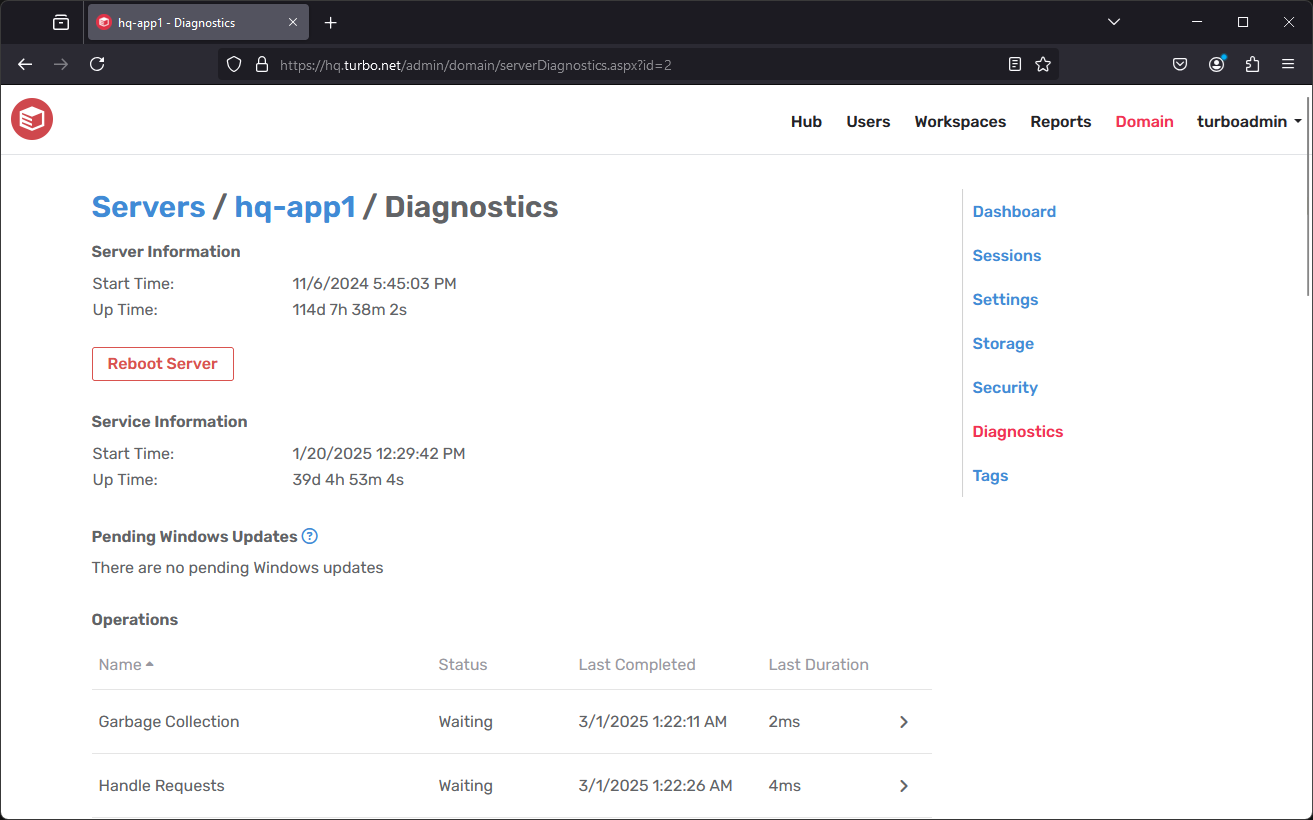
Problem
- Load information is missing from the Turbo Server administration Domain page.
Solutions
- Confirm the service user belongs to the Performance Monitor Users group:
- Log on to the application server.
- Open Server Manager > Tools > Computer Management.
- Navigate to Local Users and Groups > Users.
- Open the service user Properties and ensure Performance Monitor Users is listed under Member Of; add it if missing.
Related
Diagnostic Tools
Enabling Debug Mode
Debug logs help Turbo support diagnose issues:
Client Logs
Located in: c:\users\[user]\appdata\local\turbo\logs
Server Debug Mode
- Stop the service:
powershell
net stop turbo- Edit
C:\ProgramData\Turbo Server\settings.xml:
xml
<?xml version="1.0" encoding="utf-8"?>
<settings>
    <InstallPath>[Path]</InstallPath>
    <InstalledVersion>[Version]</InstalledVersion>
    <DbLibraryConnection>embedded</DbLibraryConnection>
    <DbManagerConnection>embedded</DbManagerConnection>
    <TraceLevel>Debug</TraceLevel>
</settings>- Start the service:
powershell
net start turboLog File Locations
Default install location: C:\Program Files\Turbo Server
| Log Type | Location |
|---|---|
| Installation | [Install Directory]\logs\Setup.log |
| Service | [Install Directory]\logs\*.log |
| Web Services | [Install Directory]\Sandbox\MODIFIED\@PROGRAMFILESX86@\Turbo Server\Web\logs\*.log[Install Directory]\Sandbox\MODIFIED\@PROGRAMFILESX86@\Turbo Server\Web\Hub\logs\*.log |
| SQL Server | [Install Directory]\Sandbox\MODIFIED\@PROGRAMFILESX86@\Microsoft SQL Server\MSSQL.1\MSSQL\LOG |
| Apache | [Install Directory]\Sandbox\MODIFIED\@PROGRAMFILESX86@\Apache Software Foundation\Apache2.4\logs\error.log |
| Portal/Broker | Container logs (xcstream_*.txt) Export with: turbo logs [container] --export=c:\path |
| App Server | C:\Program Files (x86)\Turbo\ApplicationServer\logs |
Managing the Service
Two methods to restart the Turbo Server service:
Using Control Panel:
- Navigate to: Control Panel > Administrative Tools > Services
- Find and restart "Turbo Server" service
Using Command Prompt (as Administrator):
powershell# Stop service net stop turbo # Start service net start turbo
Windows Event Viewer
Check Event Viewer for service startup issues and other Windows-related problems.
Tips
Important Notes
- Always check logs before making configuration changes
- Back up settings before modifications
- Document troubleshooting steps taken
- Contact support for persistent issues
Best Practices
- Monitor performance counters regularly
- Keep diagnostic logs for issue tracking
- Maintain regular service maintenance
- Document configuration changes