
Appearance
Application Streaming
Use these checks to resolve Run In Cloud (HTML5 or native) streaming problems.
Application Immediately Closes After Initial Splash Screen In Cloud HTML5 Or Cloud Windowed Mode
Problem
- Microsoft RemoteApp disconnects after the splash screen because no window remains active.
Solutions
- Remove custom splash screens so Turbo can detect the first window and delay the timeout. Contact [email protected] if the app has long window transitions. See the Microsoft documentation for details.
- If timeouts persist, collect diagnostics:
- Open Administration reports and find the matching event in Application Sessions or User Sessions.
- Review
%LOCALAPPDATA%\\Turbo\\Logson the application server for the session user identified in HTML5 console logs. - Launch locally with the diagnostics flag.
- Inspect VM logs in
%LOCALAPPDATA%\\Turbo\\Containers\\sandboxes\\[sessionId]\\logs. - Contact support if the cause remains unclear.
Related
Users Are Unable To Launch More Than One Application At A Time
Problem
- Users are limited to a single Remote Desktop Services session.
Solutions
- Disable the Group Policy setting Restrict Remote Desktop Services users to a single Remote Desktop Services session on application servers.
Related
Applications Take A Long Time To Start During Profile Logon
Problem
- Temporary profile creation is slow because roaming profiles or user profile disks load from the network.
Solutions
- Disable roaming profiles and user profile disks when using Kerberos or ask-for-login modes, since Turbo handles application data caching and sync within application settings.
- Follow Microsoft guidance to disable roaming profiles and user profile disks.
Related
Application Launches And Synchronization Is Slow
Problem
- Antivirus or heavy CPU/disk usage slows launches and sync.
Solutions
- Check hub and application servers for antivirus scans or high CPU/disk utilization and adjust schedules or exclusions.
Related
Applications Launch With Non-Tunneled Connections But Stall With Tunneled Connections
Problem
- Tunneled traffic through the Broker is blocked or degraded, causing sessions to stay at starting/connecting.
Solutions
- Review antivirus, load balancers, and proxies for packet filtering or whitelists that may block Turbo traffic.
- Check device logs for blocked traffic and allow Broker traffic as required.
Related
The Service Is Not Available (NResult Error Code: -1)
Problem
- RDS connection fails;
rdpproxy.logshows NTLM negotiation errors.
12:20:15.569 000033fc [rdpNego         ] state: NEGO_STATE_FINAL
12:20:15.569 000033fc [rdpNego         ] Negotiated NLA security
12:20:15.569 000033fc [rdpNego         ] nego_security_connect with PROTOCOL_NLA
12:20:15.569 000033fc [rdpTls          ] TLS handshake started
12:20:15.632 000033fc [rdpTls          ] TLS handshake finished
12:20:15.632 000033fc [nla             ] SPNEGO failed with NTSTATUS: 80090302
12:20:15.632 000033fc [rdp             ] rdp err -2146893054
12:20:15.632 000033fc [rdp             ] unhandled -2146893054, returning generic fail
12:20:15.632 000033fc [rdpNego         ] Failed to connect with NLA security
12:20:15.632 000033fc [rdpConnection   ] Error: protocol security negotiation or connection failure -1
Solutions
- Enable NTLM per the Network Security guidance so the RDS connection can negotiate successfully.
Related
Cloud HTML5 Client Launches Are Interrupted By A Reconnection Message
Problem
- The HTML5 client reconnects repeatedly because the websocket closes unexpectedly.
Solutions
- Increase the load balancer timeout above 30 seconds (recommend at least 60 seconds) so it exceeds the HTML5 websocket keep-alive interval. For Azure Application Gateway, adjust the Backend Request time-out.
Related
Websocket Tunnel Reconnection Error
Problem
- The remote application tunnel fails after exceeding reconnection attempts.
Solutions
- Verify the client can reach the application server; wait and relaunch if a network blip occurred.
- Check that the Turbo.AppServer service is running.
- Ensure the WebSocket is allowed through your load balancer or proxy. Test with:
// replace wss with ws if your domain does not use SSL
var ws = new WebSocket("wss://{domainUrl}/tunnelws/debug");
ws.addEventListener("open", (event) => {
  console.log("open", event);
  ws.send("connected");
});
ws.addEventListener("message", (event) => {
  console.log("message", event);
});
// see the messages
Finally close the WebSocket from the console:
ws.close()
// see the socket closed in broker logs
Related
Websocket Events Unauthorized
Problem
- The events websocket cannot authenticate because the Portal session is missing or invalid.
Solutions
- Log out and back into the Portal to refresh the session, then relaunch the app.
Related
Websocket Events Error
Problem
- The events websocket connection cannot be established.
Solutions
- Verify the Portal service is running and reachable from the browser, then retry.
Related
Session Creation Repo Not Found
Problem
- The requested repository is missing on the Hub.
Solutions
- Verify the repository exists on the Hub server. Manage repositories on the Administration site Hub page.
Related
Session Creation Session Not Found
Problem
- The Broker cache does not contain the requested session.
Solutions
- Relaunch the application to create a new remote session.
Related
Session Creation No RDP Hosts Available
Problem
- No application servers are available or reachable.
Solutions
- Ensure application servers are online and accessible by the Broker. See Application Server troubleshooting.
Related
Session Creation Bad Request
Problem
- The launch request contains invalid arguments because the application configuration is missing or invalid.
Solutions
- Review the application configuration for required parameters and retry the launch.
Related
Session Creation Configuration Error
Problem
- The Portal is not configured with a Broker URL, so the session cannot be created.
Solutions
- Set the correct Broker URL in the Portal configuration and retry the launch.
Related
Session Creation Unauthorized
Problem
- Authentication failed because the Portal session is missing or invalid.
Solutions
- Log out and back into the Portal, then relaunch the application.
Related
Session Creation Not Found
Problem
- The Portal cannot reach the Broker service to create the session.
Solutions
- Confirm the Broker service is running and reachable from the Portal.
Related
Session Creation Timed Out
Problem
- The session request timed out because the Broker is slow or unreachable.
Solutions
- Verify Broker availability and connectivity from the Portal, then relaunch.
Related
Session Creation Unavailable
Problem
- The Broker service is restarting and cannot create sessions.
Solutions
- Wait for the Broker service to finish restarting, then relaunch the application.
Related
Session Creation User Creation Failed
Problem
- User creation failed during session provisioning.
Solutions
- Check connectivity between the Broker service and the application server; verify the server is responsive. See Application Server troubleshooting.
- Ensure the application server service account can create or update RDP user accounts.
- Confirm the application server has valid RDP licensing.
- Verify the Turbo Server service on the application server is running:
- Start the service if it was stopped manually or failed after reboot because of slow resources.
- If Group Policy prevents the service from starting, check for a corrupted
C:\Windows\System32\GroupPolicy\Machine\Registry.pol, rename it, and rungpupdateto refresh. Event Viewer will show the exception below when this occurs:
Application: TurboServer-Service.exe
Framework Version: v4.0.30319
Description: The process was terminated due to an unhandled exception.
Exception Info: System.IO.FileLoadException
   at Turbo.Server.Service.GroupPolicy.IGroupPolicyObject.OpenLocalMachineGPO(UInt32)
   at Turbo.Server.Service.GroupPolicy.ComputerGroupPolicyObject..ctor(Turbo.Server.Service.GroupPolicy.GroupPolicyObjectSettings)
   at Turbo.Server.Service.GroupPolicy.ComputerGroupPolicyObject+<>c__DisplayClass3_0.<SetPolicySettings>b__0()
   at System.Threading.ExecutionContext.RunInternal(System.Threading.ExecutionContext, System.Threading.ContextCallback, System.Object, Boolean)
   at System.Threading.ExecutionContext.Run(System.Threading.ExecutionContext, System.Threading.ContextCallback, System.Object, Boolean)
   at System.Threading.ExecutionContext.Run(System.Threading.ExecutionContext, System.Threading.ContextCallback, System.Object)
   at System.Threading.ThreadHelper.ThreadStart()
Related
Session Creation Error
Problem
- The session cannot be created because of an unknown server error, often due to unavailable application or broker servers.
Solutions
- Verify application and broker servers are online and reachable, then retry. See Application Server troubleshooting.
Related
Launch Configuration Bad Request
Problem
- Launch configuration is invalid because required arguments are missing.
Solutions
- Review and correct the application configuration, then retry the launch.
Related
Launch Configuration Unauthorized
Problem
- Authentication failed when creating the launch request because the Portal session is missing or invalid.
Solutions
- Log out and back into the Portal to refresh the session, then relaunch.
Related
Launch Configuration Not Found
Problem
- The Portal cannot reach the API service to create the launch request.
Solutions
- Ensure the API service is running and accessible from the Portal server.
Related
Launch Configuration Timed Out
Problem
- The launch request timed out because the Broker is slow or unreachable.
Solutions
- Confirm Broker performance and connectivity, then relaunch the application.
Related
Launch Configuration Unavailable
Problem
- The API service is restarting and cannot create launch requests.
Solutions
- Wait for the API service to finish restarting, then try again.
Related
Launch Configuration Error
Problem
- An unknown server error prevented the launch request from being created.
Solutions
- Verify Broker and API service health, then retry. If the issue persists, contact support.
Related
Turbo Client Not Found
Problem
- The Turbo Client is missing or misconfigured on the application server, so launches fail.
Solutions
- Reinstall Turbo Server on the application server so the Turbo Client path is registered and contains
turboplay.exe. - Ensure these registry keys exist:
[HKEY_LOCAL_MACHINE\SOFTWARE\Microsoft\Windows NT\CurrentVersion\Terminal Server\TSAppAllowList\Applications\turbo]
"CommandLineSetting"=dword:00000001
"Path"="C:\\Program Files (x86)\\Turbo\\Cmd\\turbo.exe"
"turboplay"=""

[HKEY_LOCAL_MACHINE\SOFTWARE\Microsoft\Windows NT\CurrentVersion\Terminal Server\TSAppAllowList\Applications\turboplay]
"CommandLineSetting"=dword:00000001
"Path"="C:\\Program Files (x86)\\Turbo\\Cmd\\turboplay.exe"
"turboplay"=""

[HKEY_LOCAL_MACHINE\SOFTWARE\Microsoft\Windows NT\CurrentVersion\Terminal Server\TSAppAllowList\Applications\turbow]
"CommandLineSetting"=dword:00000001
"Path"="C:\\Program Files (x86)\\Turbo\\Cmd\\turbow.exe"
"turboplay"=""
Related
RDP Error Code Reference
The following are RDP logon or disconnection errors that can cause the connection to the remote application to fail. These error codes may be found in the Details section on the HTML5 launch error page.
disconnectReasonByServer
Problem
- The server disconnected the session, often because the user lacks RDP permissions.
Solutions
- Confirm the Windows user belongs to the Remote Desktop Users group:
- Log on to the application server.
- Open Server Manager and click on Tools > Computer Management.
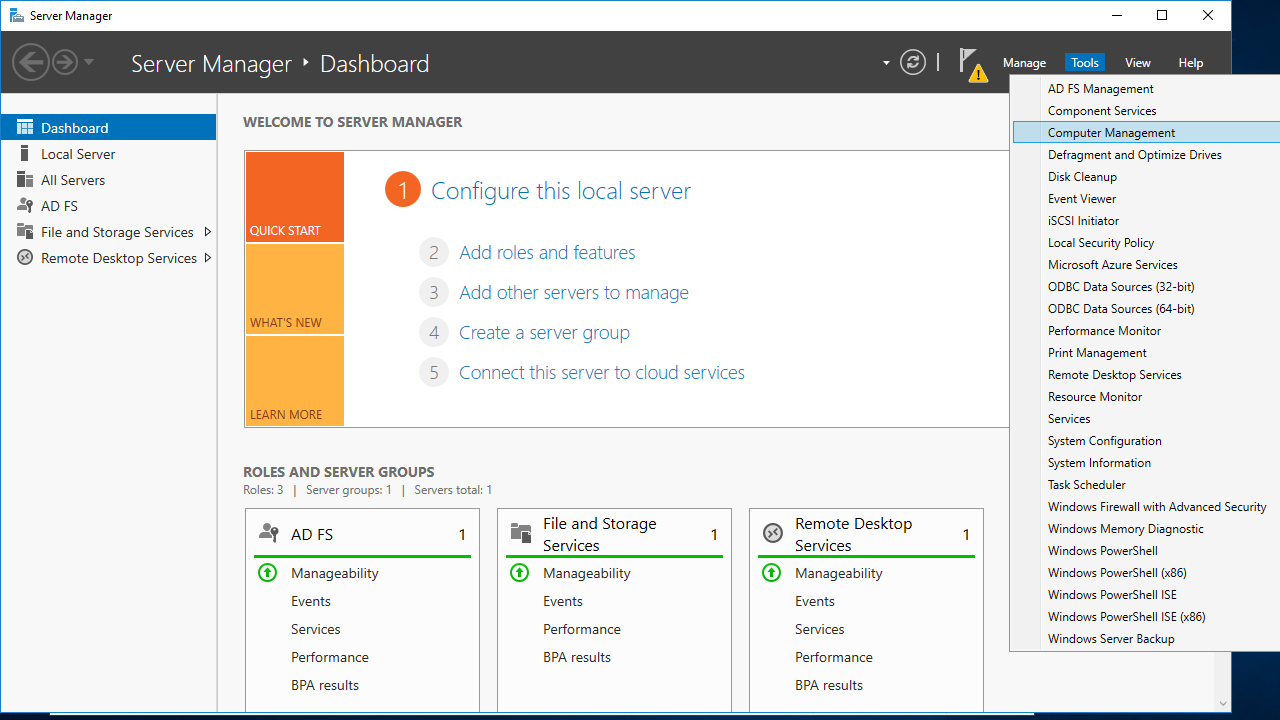
- From the Computer Management window, click on Local Users and Groups > Users.
- Right-click on the user that was listed in the HTML5 error details and click Properties.
- Click on the Member Of tab and check that the Remote Desktop Users group is listed.
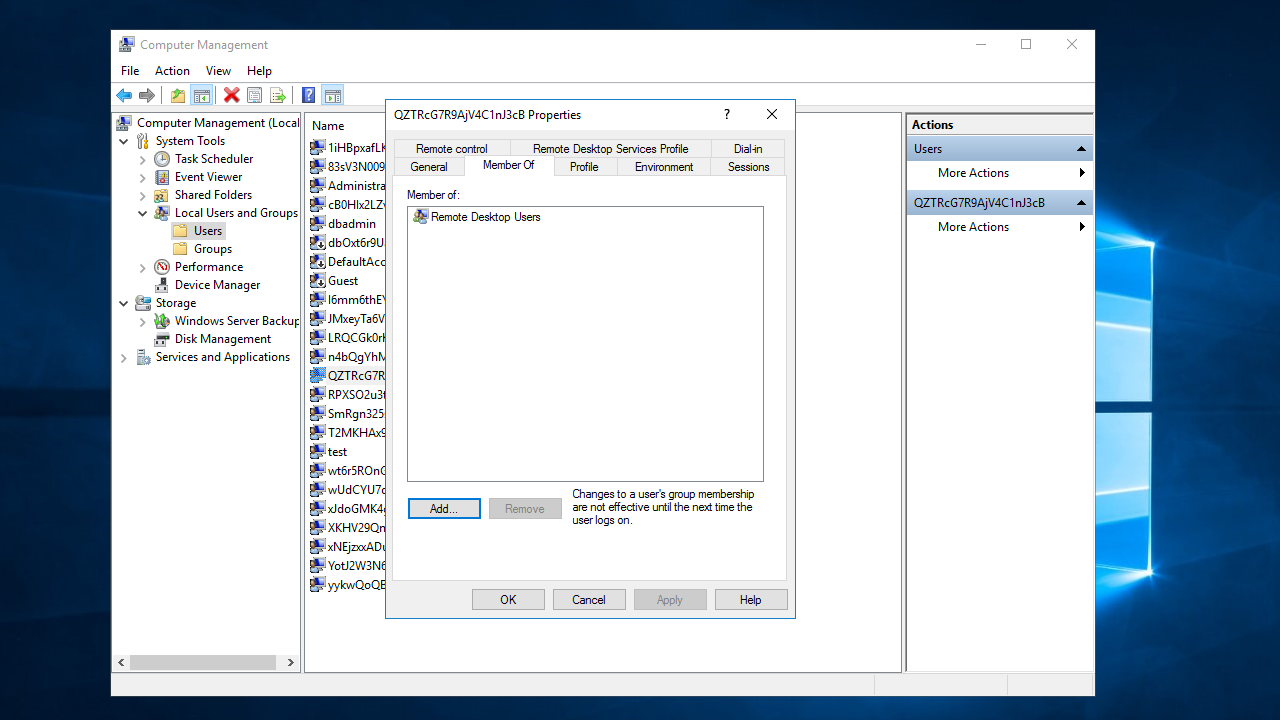
- If the group is not listed, click Add and enter
Remote Desktop Users, then click OK.
Related
disconnectReasonLicensingFailed
Problem
- License negotiation failed because the RDS license is expired or invalid.
Solutions
- Validate the RDS license on the application server and renew if needed. See the Microsoft documentation.
Related
ERRINFO_RPC_INITIATED_DISCONNECT
Problem
- An administrative tool disconnected the session.
Solutions
- Check for admin actions or scripts that may have disconnected the user and relaunch if appropriate.
Related
ERRINFO_RPC_INITIATED_LOGOFF
Problem
- An administrative tool forced a logoff.
Solutions
- Identify administrative actions or scripts that triggered the logoff and address them before retrying.
Related
ERRINFO_IDLE_TIMEOUT
Problem
- The idle session limit timer expired.
Solutions
- Adjust Set time limit for active but idle Remote Desktop Services in Group Policy. Turbo Server defaults to
21600000milliseconds. See Streaming.
Related
ERRINFO_LOGON_TIMEOUT
Problem
- The active session limit timer expired.
Solutions
- Update Set time limit for active Remote Desktop Services sessions in Group Policy (default
21600000milliseconds). See Streaming.
Related
ERRINFO_DISCONNECTED_BY_OTHERCONNECTION
Problem
- Another user connection forced the disconnection.
Solutions
- Close existing sessions for the user and relaunch. Only one connection per user per application per application server is allowed.
Related
LOGON_FAILED_BAD_PASSWORD
Problem
- Login failed because credentials are invalid or out of sync.
Solutions
- For Ask/Kerberos, confirm the password is correct.
- For temporary auth, restart the Turbo Server service on all Portal instances to clear cached credentials.
- If the error persists, delete the temporary Windows account, restart Turbo Server services, and relaunch to recreate the user.
Related
STATUS_LOGON_FAILURE
Problem
- The logon failed because of invalid credentials or mismatched temporary credentials.
Solutions
- Ensure Turbo.AppServer is running; restart if needed.
- Restart Turbo Server services on all Portals to clear cached credentials.
- Delete the temporary Windows account, restart services, and relaunch to recreate the account.
Related
STATUS_PASSWORD_MUST_CHANGE
Problem
- The user must change their password before logging on.
Solutions
- Clear the User must change password at next logon requirement:
- Log on to the application server.
- Open Server Manager and click on Tools > Computer Management
- From the Computer Management window, click on Local Users and Groups > Users.
- Right-click on the user that was listed in the HTML5 error details and click Properties.
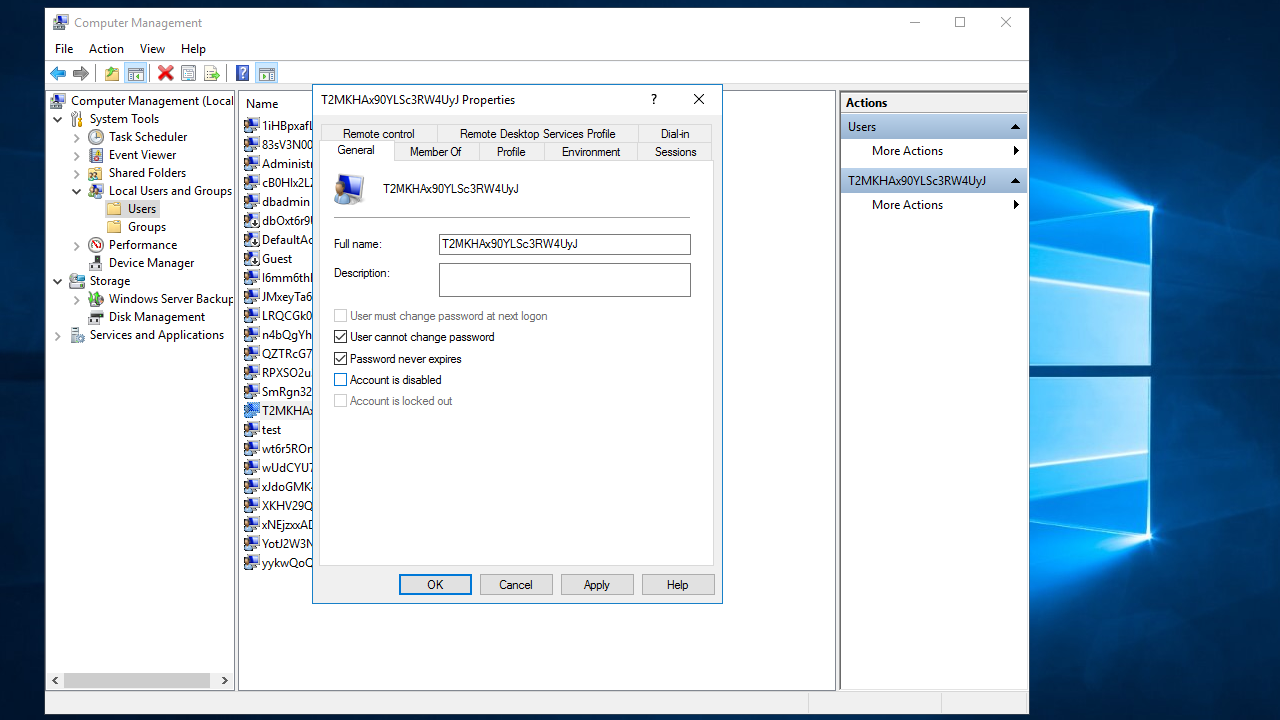
- Uncheck the User must change password at next logon setting.
Related
SSL_ERR_ACCOUNT_DISABLED
Problem
- The Windows account running the session is disabled.
Solutions
- Enable the account:
- Log on to the application server.
- Open Server Manager and click on Tools > Computer Management.
- From the Computer Management window, click on Local Users and Groups > Users.
- Right-click on the user that was listed in the HTML5 error details and click Properties.
- Uncheck the Account is disabled setting.
Related
SSL_ERR_ACCOUNT_LOCKED_OUT
Problem
- The Windows account running the session is locked out.
Solutions
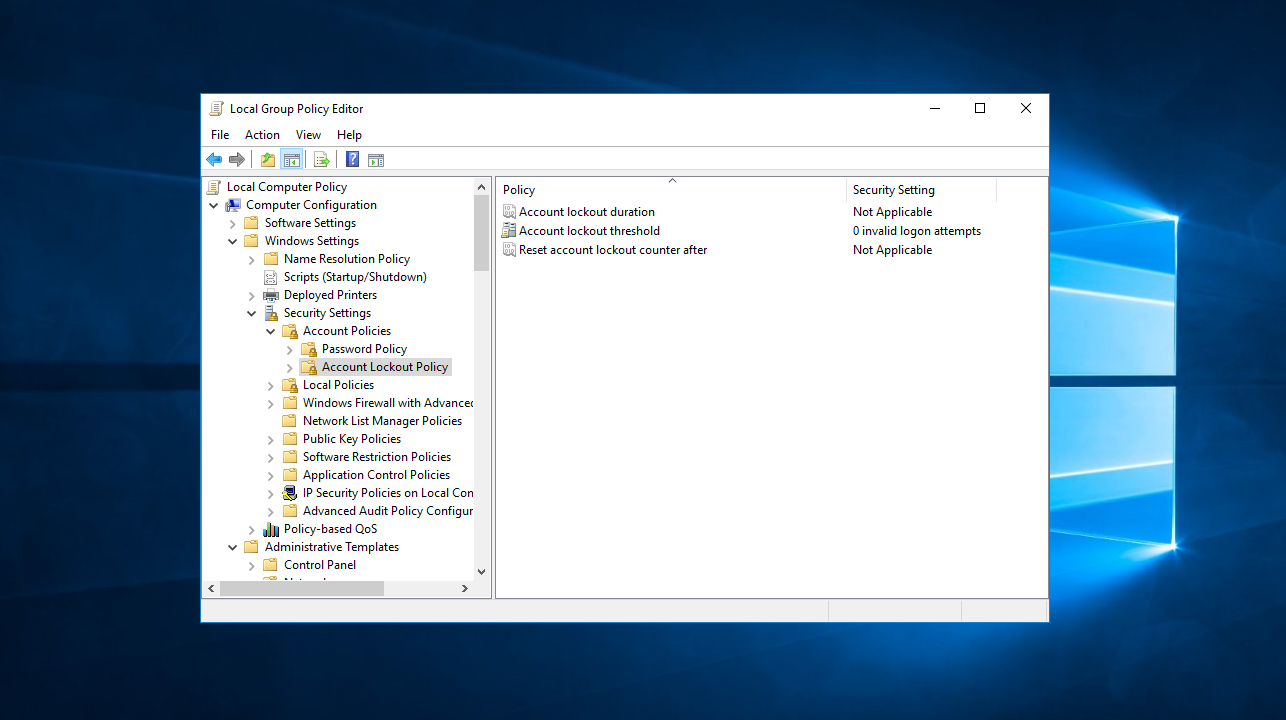
- Adjust the Account lockout threshold Group Policy if needed:
- Clear the lockout for the affected user:
- Log on to the application server.
- Open Server Manager and click on Tools > Computer Management.
- From the Computer Management window, click on Local Users and Groups > Users.
- Right-click on the user that was listed in the HTML5 error details and click Properties.
- Uncheck the Account is locked out setting.
Related
SSL_ERR_PASSWORD_EXPIRED
Problem
- The Windows account password has expired.
Solutions
- Adjust the Maximum password age Group Policy if required:
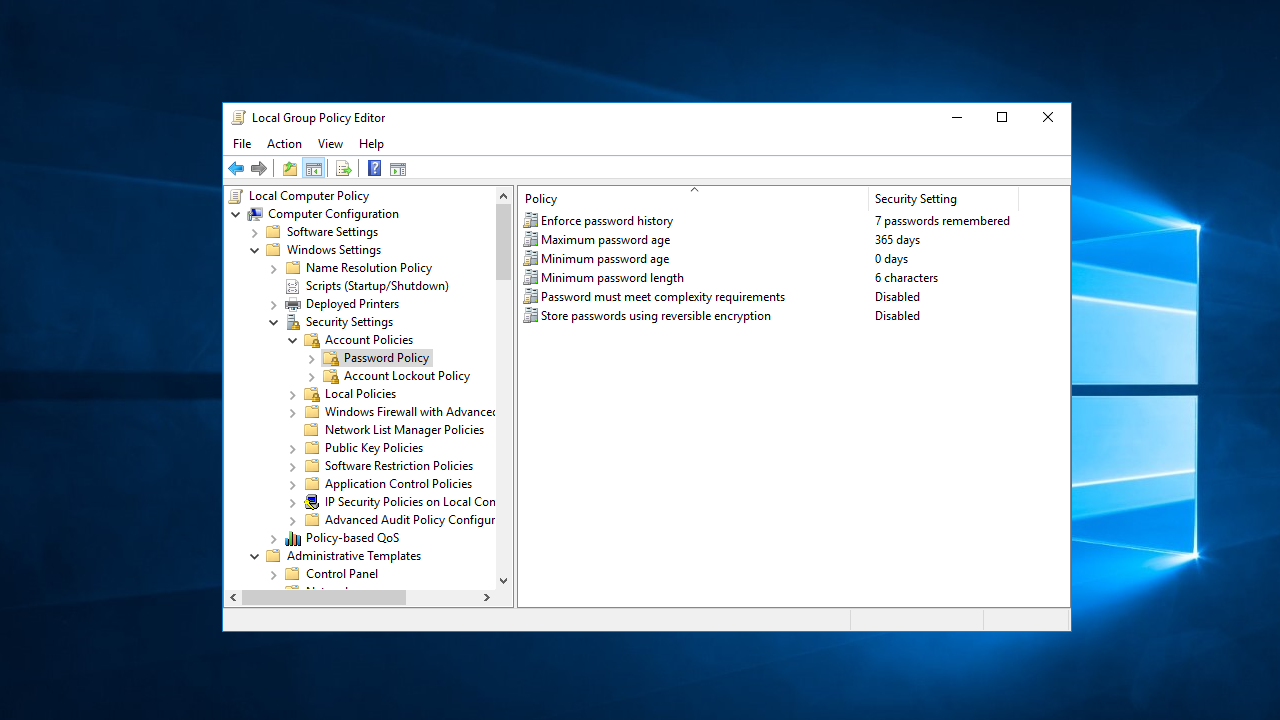
- To set the password to never expire:
- Log on to the application server.
- Open Server Manager and click on Tools > Computer Management.
- From the Computer Management window, click on Local Users and Groups > Users.
- Right-click on the user that was listed in the HTML5 error details and click Properties.
- Check the Password never expires setting.
Related
Users Are Unable To See The HTML5 File Upload Explorer
Problem
- The HTML5 file upload explorer does not appear because of incorrect login format.
Solutions
- Instruct users to sign in with the correct format (for example,
domain\\useror[email protected]) when prompted.
Related
The Server Denied The Connection
Problem
- The launch fails because the Remote Desktop Connection Broker service is stopped or not fully initialized.
Solutions
- Check Event Viewer under Server Roles\Remote Desktop Services for errors.
- Start or restart the service after reboot or performance slowdowns, and ensure sufficient memory is available.
Related